The AI chatbot for WordPress
Install the ScanChat AI plugin, connect your account in one click, and your chatbot answers your visitors around the clock using your website's content. It also collects their contact details so you can follow up with them.
- No code to copy: one-click connection
- Works with any theme and page builder
- 7-day free trial, no credit card required
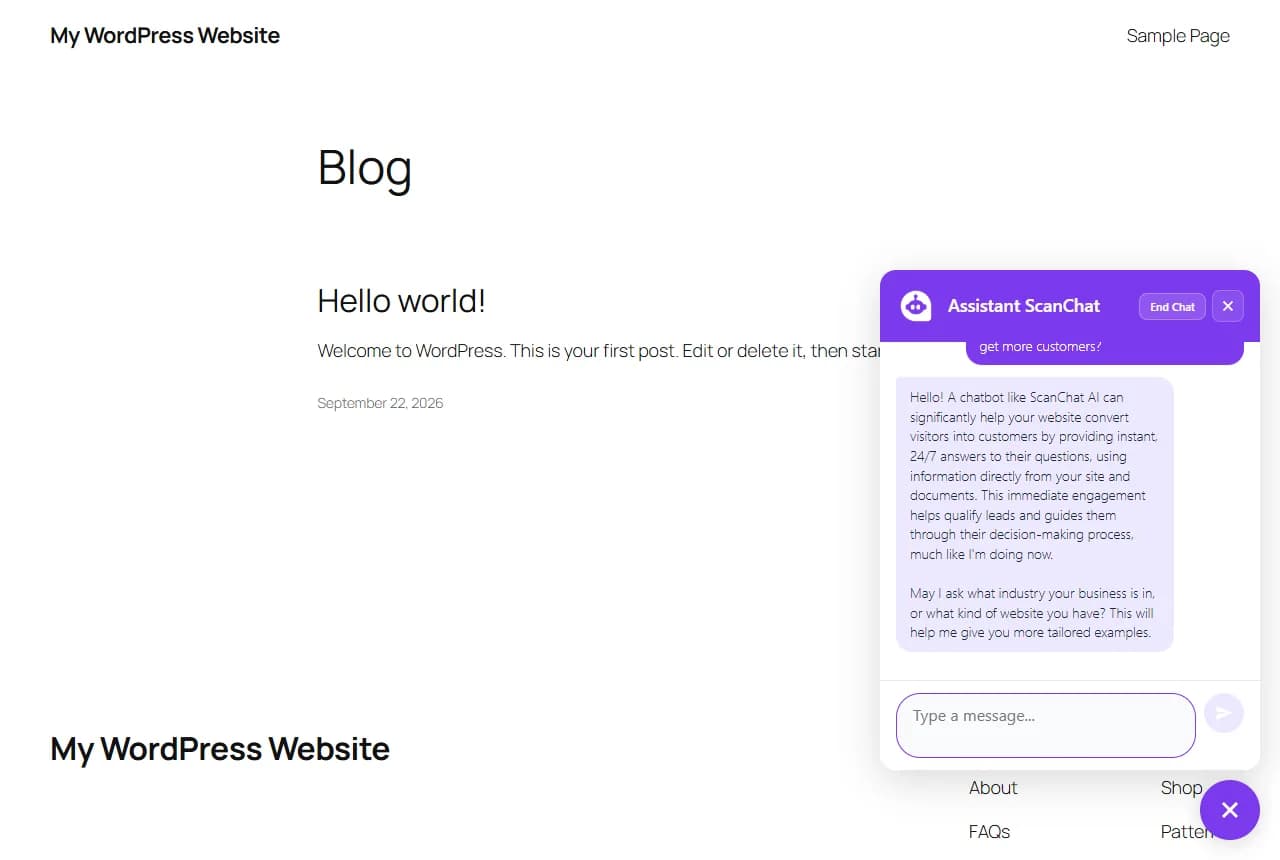
Why add an AI chatbot to your WordPress website?
Your visitors often ask the same questions: your prices, lead times, service area, opening hours. When nobody is available to answer, some of them leave your website without getting in touch. A contact form isn't always enough: visitors have to wait for a reply, and many don't take the time to fill it in.
ScanChat AI reads your website pages and the documents you give it (PDF, Word, TXT, Markdown), then answers your visitors' questions with your own information. When a visitor shows interest, the chatbot asks for the details you've chosen (name, email, phone, project type…) and passes them on to you. The WordPress plugin displays this chatbot on your website, without touching your theme's code.
What the plugin gives you
Answers drawn from your content
The chatbot relies on your pages and documents. You can add to its knowledge at any time from your dashboard, without reinstalling the plugin.
Leads, not just conversations
You choose which information to collect. Each lead lands in your dashboard, triggers an email alert and can be sent to your CRM with the Pro and Scale plans.
One-click connection
The “Connect my account” button takes you to your ScanChat AI dashboard: you choose the chatbot and it appears on your website. Only its ID and name are sent to WordPress.
Display under your control
Hide the chatbot on certain pages (checkout, legal notice…) or while you're logged in as an administrator, so it doesn't skew your statistics.
Multilingual
With the language set to “Auto Detect”, the chatbot replies in the visitor's language. On a WPML or Polylang website, it follows the language of each page.
Lightweight for your website
The chatbot script loads at the end of the page and is deferred (defer): it doesn't block your content from displaying.
Install the chatbot on WordPress
You need a chatbot created in your ScanChat AI dashboard (see Create your first chatbot) and administrator access to WordPress 5.8 or later (PHP 7.4 minimum). Three methods, depending on your preference:
1From the WordPress directory, with one-click connection (recommended)
- In WordPress: Plugins → Add New Plugin, search for “ScanChat AI”, then click Install Now and Activate. The plugin is published in the official WordPress plugin directory.
- Open the ScanChat AI menu in WordPress and click Connect my account.
- Select your chatbot: you're sent back to WordPress and the chatbot is live on your website.
2With the ZIP file
You can also download the ZIP file from your dashboard (Embed Code section, Download the plugin button) or here, then, in WordPress: Plugins → Add New Plugin → Upload Plugin, choose the scanchat-ai.zip file, click Install Now and Activate. Then follow steps 2 and 3 above. No need to unzip the file: WordPress does it for you. It's the same plugin as the one in the directory.
3With the line of code
Prefer not to add a plugin? Copy the code from the Embed Code section and paste it just before the
</body>tag, for example in your child theme's footer or with a code snippet plugin. You'll then lose the per-page display settings offered by the plugin.Your installation code<script src="https://scan-chat.com/api/widget" data-chatbot-id="VOTRE-IDENTIFIANT"></script>
The full guide, with the messages shown at each step and troubleshooting tips, is in Install your WordPress chatbot with the ScanChat AI plugin.
The plugin in pictures
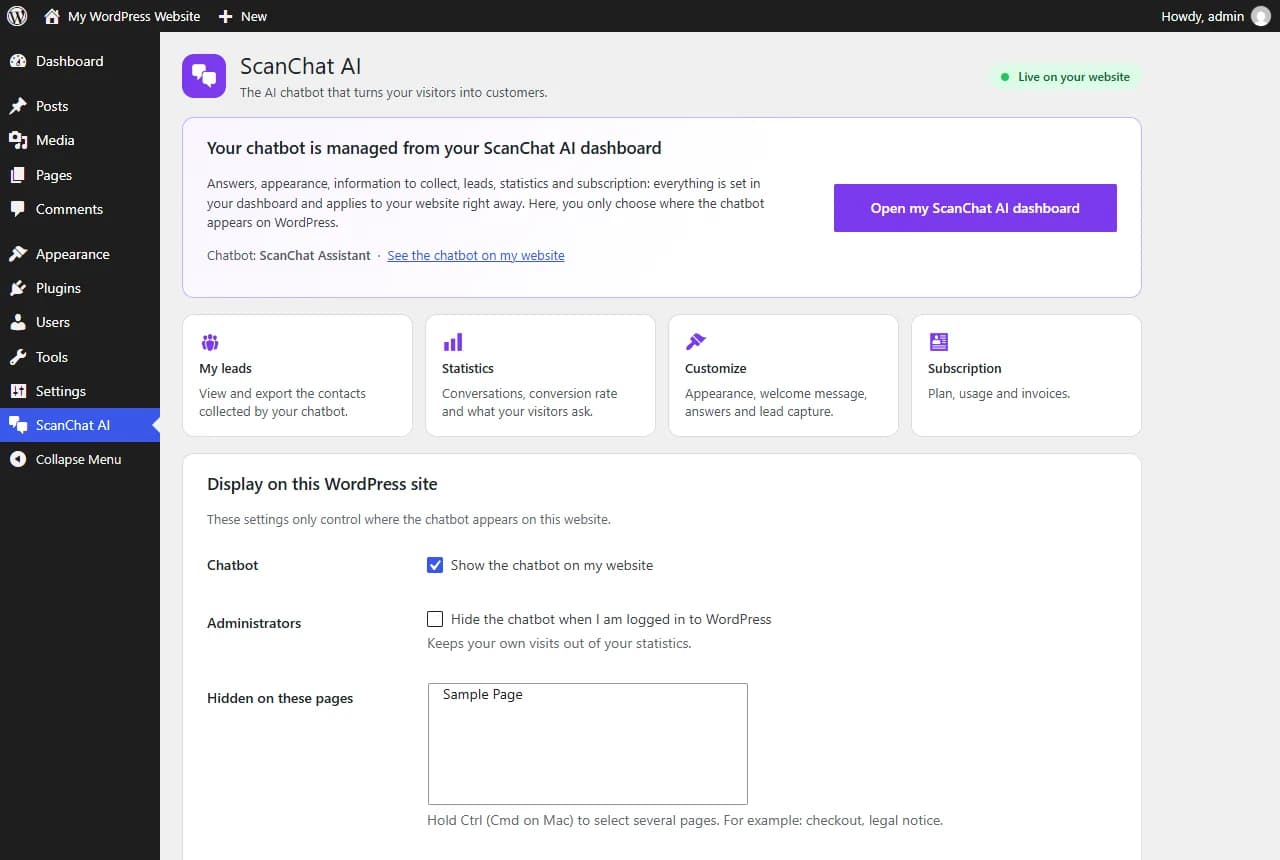
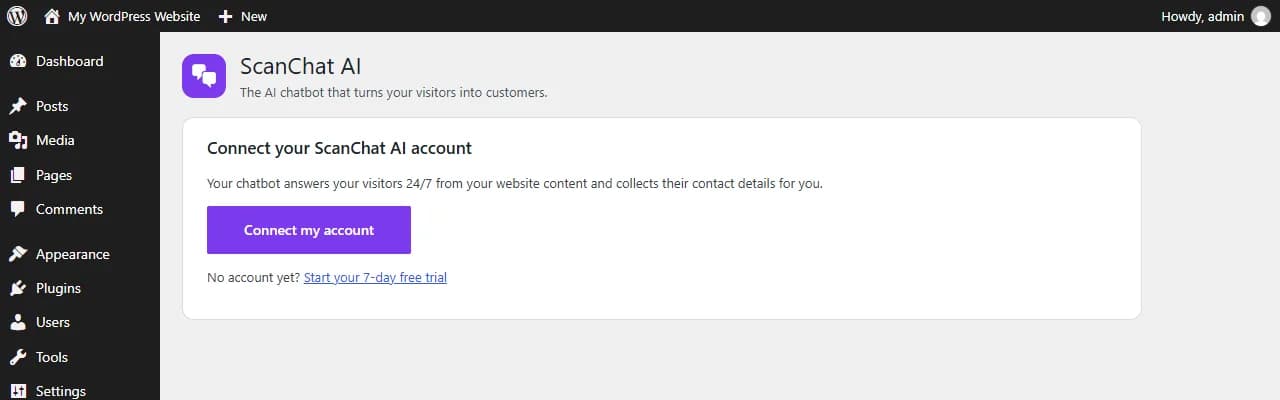
Screenshots taken with WordPress in English; the plugin is also available in French.
Frequently asked questions
Is the WordPress plugin free?
Yes, the plugin is free (GPL license). The chatbot it displays requires a ScanChat AI account: you start with a 7-day free trial, no credit card required, then choose a plan. See pricing.
Does the chatbot work with Elementor, Divi or my theme?
Yes. The plugin adds the chatbot script through WordPress's standard mechanism, in the footer, regardless of your theme and page builder (Elementor, Divi, block editor…). The chatbot appears on all public pages, except those you exclude. Only a theme that doesn't follow WordPress standards (with no standard footer) could prevent it from displaying.
Does it work with WooCommerce?
Yes, the chatbot also appears on your WooCommerce store and answers from the pages it has read (products, shipping, returns…) and the documents you add. It reads up to 50 pages of your website: for a large catalog, add a summary document. It isn't connected to your orders, so it can't provide order tracking. You can hide it on the cart and checkout pages.
Is the chatbot GDPR compliant?
The chatbot can ask for the visitor's consent before collecting their contact details: the option is enabled by default and the consent is saved with the lead. A name or phone number is only saved if the visitor provides it. Remember to mention the chatbot in your privacy policy. See GDPR consent and Data and GDPR.
Will the chatbot slow down my website?
No. The script loads at the end of the page and is deferred: your content displays first, then the chatbot bubble appears. If you use a caching plugin (WP Rocket, LiteSpeed…), clear the cache after installation.
Where can I find my leads?
In your ScanChat AI dashboard, on the Leads page, which you can reach from the plugin's “My leads” shortcut. You also receive an email alert for each new lead, you can export them as CSV and, with the Pro and Scale plans, send them to your CRM.
How do I change the chatbot's answers or appearance?
From your ScanChat AI dashboard: instructions, knowledge base, colors, welcome message, information to collect. Every change applies to your WordPress website immediately, without reinstalling the plugin.
Your WordPress chatbot live today
Create your account, set up your chatbot, then connect it to WordPress in one click.
Start 7-day free trial7 days free, no credit card and no commitment.